Translate a Restaurant Menu with Your Phone
Translate a restaurant menu with your phone: flat photo, offline mode, limits and allergies, then group ordering with a single link.
Split a receipt in seconds, no sign-up needed.
Scan one free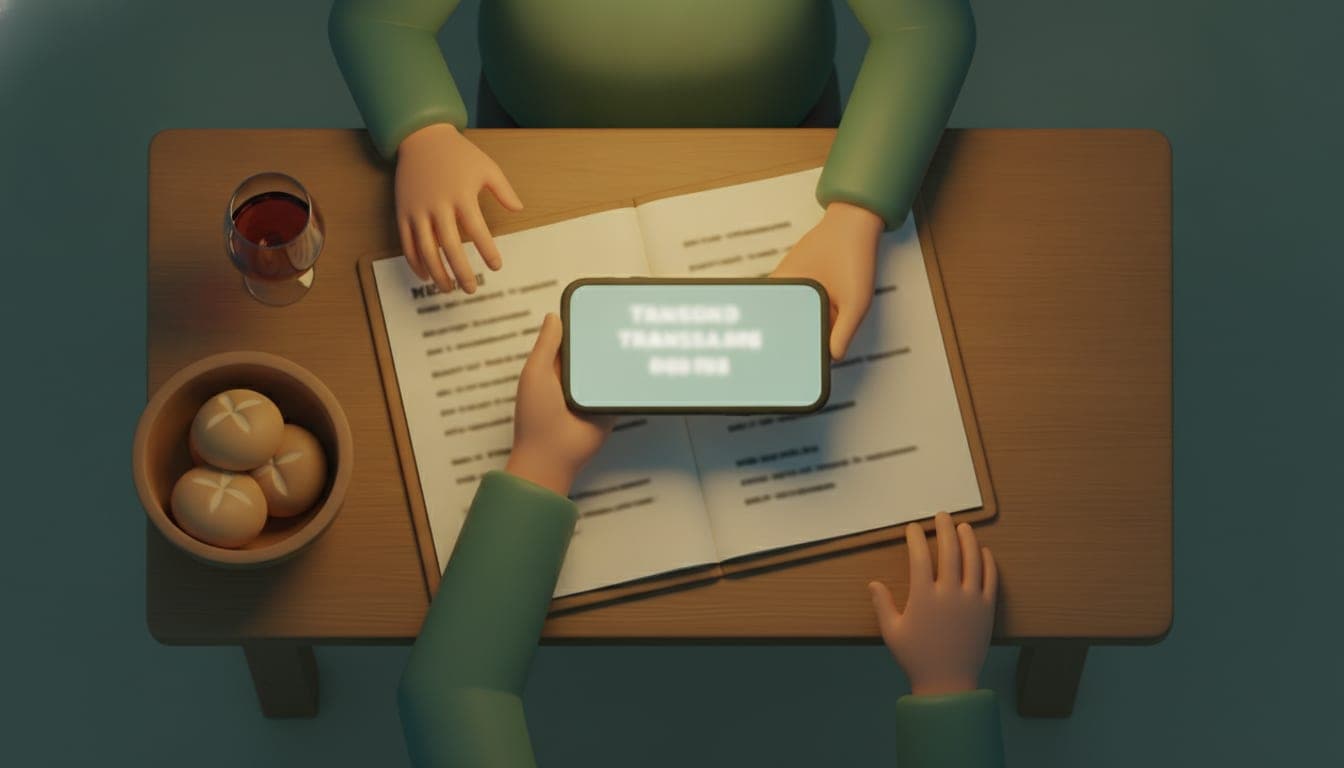
To translate a restaurant menu with your phone, point the camera of your iPhone or Android at the text: the menu appears in your language within seconds. It's the most direct method when you can't read the country's language or alphabet.
Translating a menu with your phone means letting the camera read the printed text, then showing it back in your language. Apple offers this in the iPhone camera, and Google in the Translate app on Android.
Key takeaways
- Photograph each page flat, in good light, and read the description line under the dish name: the title alone can mislead you.
- On iPhone, if Live Text is missing, check that the model is an XS, an XR or newer running iOS 15, then open Settings > General > Language & Region.
- Download the country's language before you leave, on Wi-Fi: translation will keep working without a signal.
- A translation isn't enough to rule out an allergen: ask the staff. In a group, one scan and a shared link save you from passing a single phone around.
How do you translate a restaurant menu with your phone, photo by photo?
Whatever the tool, the steps are the same: set the menu's language (or let the tool detect it), photograph each page flat in good light, read the translated lines on screen, then read the description under each dish. Allow about a minute per page.
- Language: select the menu's language, or let automatic detection do its job if the tool offers it.
- Photo: hold the phone above the page, squarely parallel to it, with no glare from a lamp. A menu photographed at an angle is hard to read, for you and for the tool.
- Reading: go through the translated lines. If a line looks absurd, move closer and retake the photo of that area.
- Descriptions: don't stop at the dish name. A title like “Saltimbocca alla romana” doesn't say much, while the line below it (veal, ham, sage) tells you what you're going to eat.
A menu with several pages takes as many photos. Take them in order and you'll find your way when reading.
iPhone, Google Lens or a dedicated app: which one to choose?
Three tools come up alongside the iPhone camera and the Translate app: Live Text, Google Lens and specialized apps. The right choice depends mostly on your phone and on what you want to do after reading.
- Live Text (iPhone): it requires an iPhone XS, XR or newer running iOS 15 or later.
- Google Lens: it works on any part of an image thanks to region selection.
- Menu translation app: Traducteur de Menus advertises translations and dish explanations in more than 80 languages.
If you're on your own, your phone's camera is enough. If you're in a group, reading is only half the job: everyone then has to choose.
Live Text missing on your iPhone: where to turn it on
Apple states that the feature isn't available in all regions or languages. The list of countries and languages isn't repeated here: check it on Apple's page. If your model is compatible and the option stays invisible, Apple describes how to turn it on for the supported languages, under Settings > General > Language & Region.
- Open Settings.
- Tap General.
- Tap Language & Region.
- Turn on Live Text.
Do it at home, not in front of the menu with the waiter standing there. If the option still doesn't appear, it may not be available in your region or language: use the Translate app or another method.
No signal abroad: what to download before you leave?
Download the language of the country you're visiting, and keep your own: Google says that you can download languages to your device so you can translate even without an Internet connection. Doing it on Wi-Fi before you leave means you won't depend on a signal when it's time to order.
Check your phone's free storage: several languages take up space.
In a group: one scan, one link, one total per person
With four people around a table, a single phone going round wastes time. Our order-from-a-translated-menu feature starts from one photo: everyone reads the menu in their own language, picks their dishes and sees their total, then the waiter receives a page in the restaurant's language.
Four steps, in this order:
- Scan the menu: photograph the menu (several pages at once if it's long), pick the photos from your gallery, or scan the QR code on the table.
- Share a link with the table: copy it, send it through your phone's share menu, or display a QR code for the others to scan across from you.
- Everyone chooses and sees their total: each person reads the menu in their language and picks their dishes. Their total updates as they go, so you can swap a dish for a cheaper one before committing.
- Show the waiter, then turn it into a bill: the waiter's page lists the order by person, with a seat number, because two guests can share the same first name.
The scan isn't perfect: it can get decorative fonts, multi-column menus and photos taken at an angle wrong. You fix things in the review step, before sharing, and you can add a dish by hand if a line resists.
The others have nothing to install: they open the link in their browser, just as when you share expenses with a link, no sign-up needed.
What translation doesn't guarantee
The translation is only as good as the photo, and it says nothing reliable about allergens.
What happens with a blurry photo or stylized text?
Google is blunt about it: translation accuracy depends on how clear the text is, and small, unclear or stylized text may be translated inaccurately. A menu handwritten in chalk or a fancy typeface are the risky cases. Retake the photo from closer, or ask the waiter to confirm a dish that tempts you.
Can you rely on the translation if you have an allergy?
No. A dish containing peanuts, gluten or milk doesn't necessarily say so in plain words on the menu, and a sauce, shared equipment in the kitchen or a forgotten ingredient all escape translation. We deliberately offer no allergen or diet filter: wrong automatic information can send someone to the hospital. Always ask the staff.
What about a dish without onions or a specific cooking style?
Special requests aren't handled in this version: you choose dishes and quantities, but not modifications. Our waiter page sends nothing to the kitchen: there is no connection to the restaurant, the register or the kitchen, and a person takes the order.
How much does it cost, and who is it for?
For our feature, you need an account to scan and share a menu, but the guests who join the order don't need one. The free plan gives a link valid for 3 hours; the Pro plan lets you choose the duration, up to one week, at 7 USD per month or 70 USD per year.
The link is deliberately short-lived: a link where anyone can write shouldn't stay open for days.
It suits the traveler who wants to read a menu quickly, and the table where everyone wants to pick their own dishes and know their total.
Frequently asked questions
Can you order in several rounds?
The waiter's page lists the order by person, with a seat number; nothing is sent to the kitchen, a person takes the order, and special requests go through the waiter.
What if the scan misses a dish?
Add it by hand.
What to do before your next table abroad?
Tonight, try the camera on a menu from any restaurant near you. For a group table, try Split The Bill.
Scan a receipt now
Upload a photo of a receipt and the AI lists the items, total, tax and category. Up to 3 scans, no card, no account.
Try Split The Bill — free
10 receipt-scanned bills/month, recurring expenses, multi-currency, and settle-up via Venmo / PayPal / Revolut.
Create a free accountRelated posts
How to Split a Drinking Party Bill: Rounding Up and Handling the Leftover
How to split a drinking party bill with just a calculator. For 43,700 yen among 7 people, rounding up to the nearest 100 yen leaves 400 yen extra, while rounding down leaves you 300 yen short. Includ…
- Rounding
- Splitting
- Bill
Split Bill Online Calculator for Restaurant Checks: By Item, With Couvert
Use a split bill online calculator for a restaurant check: shared dish, couvert and 10% service, with a 5-person example that closes at €114.20.
- Splitting
- Bill
- Receipt
Bill Split and Tip Calculator: 4,800 RSD for 4 People
A bill split and tip calculator in one formula: a 4,800 RSD bill, a 10% tip and 4 people come to 1,320 RSD each, checked by multiplying back.
- Splitting
- Bill
- Deljenje