
Recipe
Split a restaurant bill — under a minute
Snap the receipt, AI reads every item + tax + tip, you assign who ordered what, settle up in one tap.
Last reviewed: January 2026
The classic "we'll split it on Venmo" turns into a 20-minute calculator-and-photo session more often than anyone admits. Item-level fairness ("I had the salad, you had the steak") matters when one person ordered $80 of food and another ordered $20. Split The Bill is built for this exact moment: the photo upload + automatic item extraction + per-item assignment is the feature that beats every spreadsheet and every back-of-the-receipt math session. This recipe walks through the dinner-of-six scenario.
Step-by-step
- 1
Snap the receipt before paying
When the bill arrives at the table, snap a photo with your phone. Doesn't have to be perfect — the OCR handles glare, slightly blurry text, and folded receipts. Just make sure the line items + total are readable.
While waiting for the card to be processed, you can already start the split flow on your phone. By the time you're leaving the restaurant, the math is done.
- 2
Upload from the New Bill screen
Open Split The Bill on your phone → New bill → pick the photo. The AI extracts every line item, the subtotal, tax, and tip in a few seconds. You see a table with item name, quantity, price.
The only thing you do here: review the table for OCR errors. Items with "?" badges are uncertain — the AI flagged them for human review. Edit any wrong line, then proceed.
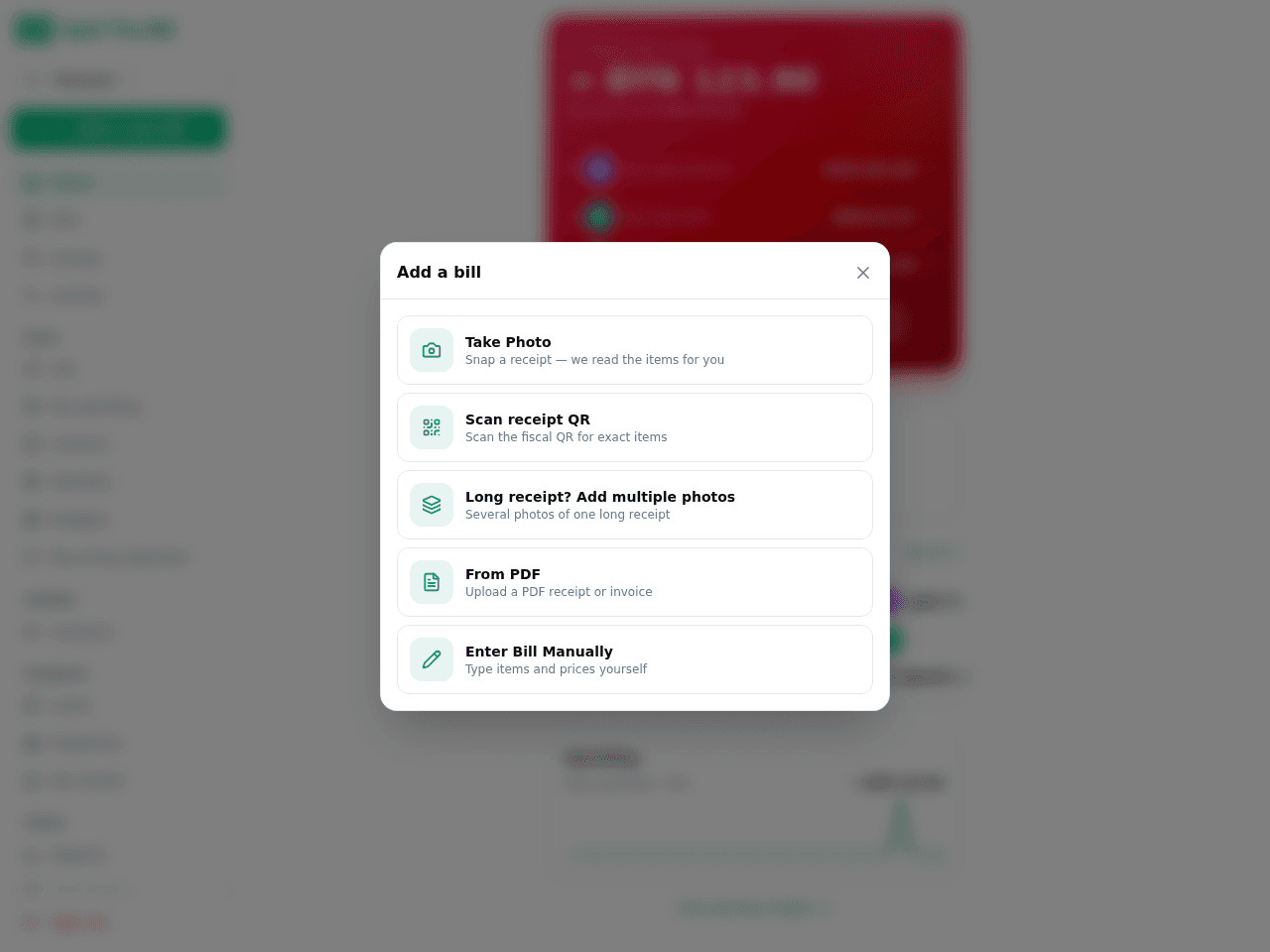
Tap New Bill, then the camera button to grab the receipt. 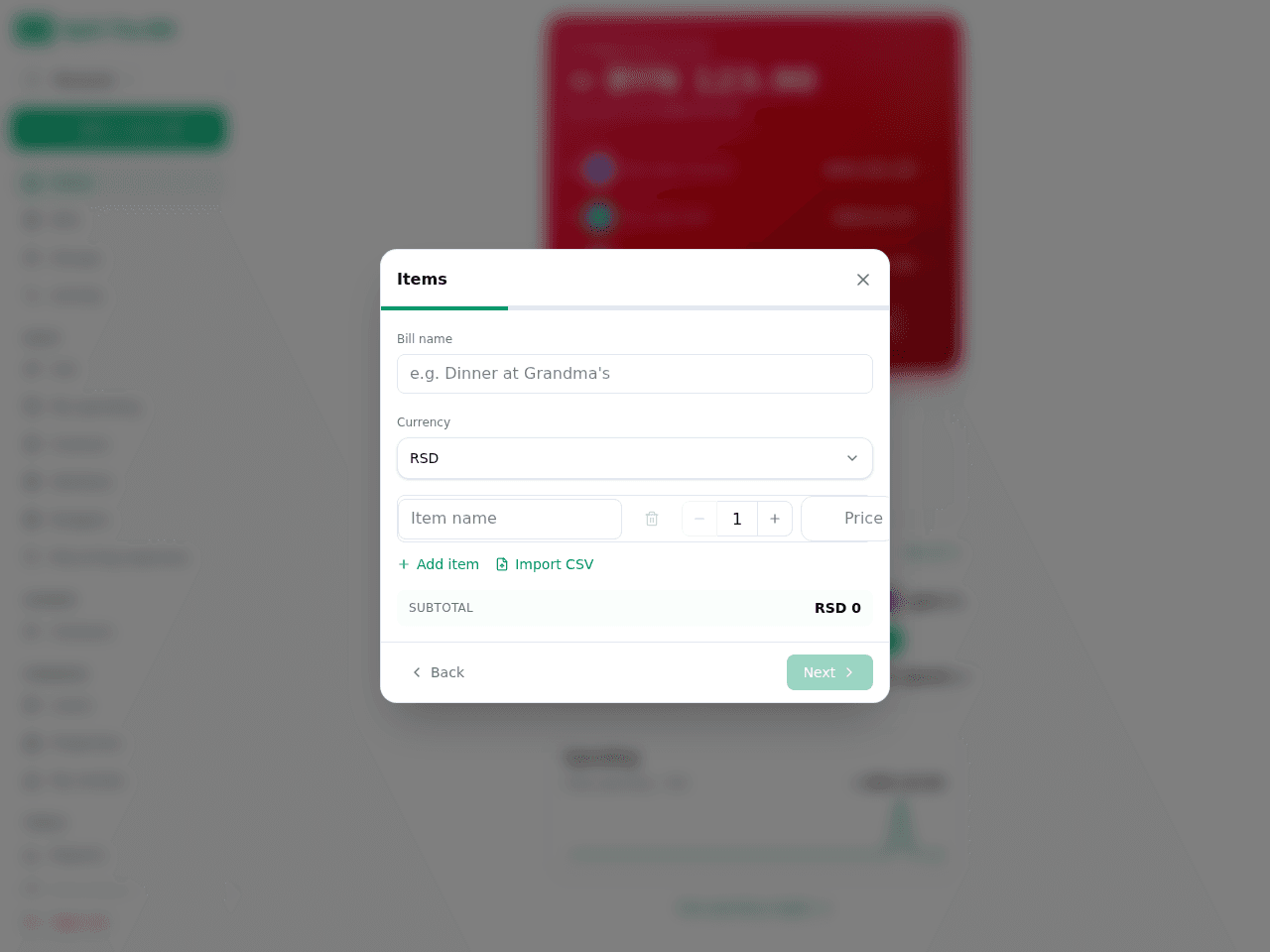
Extracted items + totals show up ready to review. - 3
Add the people who were at dinner
Click Split this bill → the wizard asks for the participants. Either select from an existing group (your "Friday night crew") or add names ad-hoc.
For each person who isn't in your contacts: just type the name. They don't need to have an account; the split works regardless. If you want to send them their share later via email, you can convert that name-only entry to an invite.
- 4
Assign items to who actually ordered them
This is the killer feature. For each line item: tap to assign to one or more people. The math runs in real time so you see each person's running total as you assign.
Common patterns: Tap "split equally" for shared items (the table's nachos, a bottle of wine everyone had). Tap one specific name for individual orders (the steak Alice ordered). Multi-tap for "we shared this dessert".
- 5
Add tip or tax adjustments
If the receipt already had tax + tip, the AI captured them. You can choose how to redistribute them: equally across all participants (default), proportional to each person's subtotal (fairer when the order sizes vary wildly), or custom amounts.
Proportional is usually what people actually want — the person who ordered $80 of food covers more of the tip than the person who ordered $20, which matches how tip etiquette works anyway.
- 6
Send everyone their share
Each non-payer share row shows their owed amount + a Pay button (if you've added your payment handles). Tap → opens Venmo / PayPal / Revolut / Cash App / Wise / SEPA QR with the amount prefilled.
For non-account peers, share the public link — they open the URL on their phone and tap the same Pay buttons to send you the money directly.
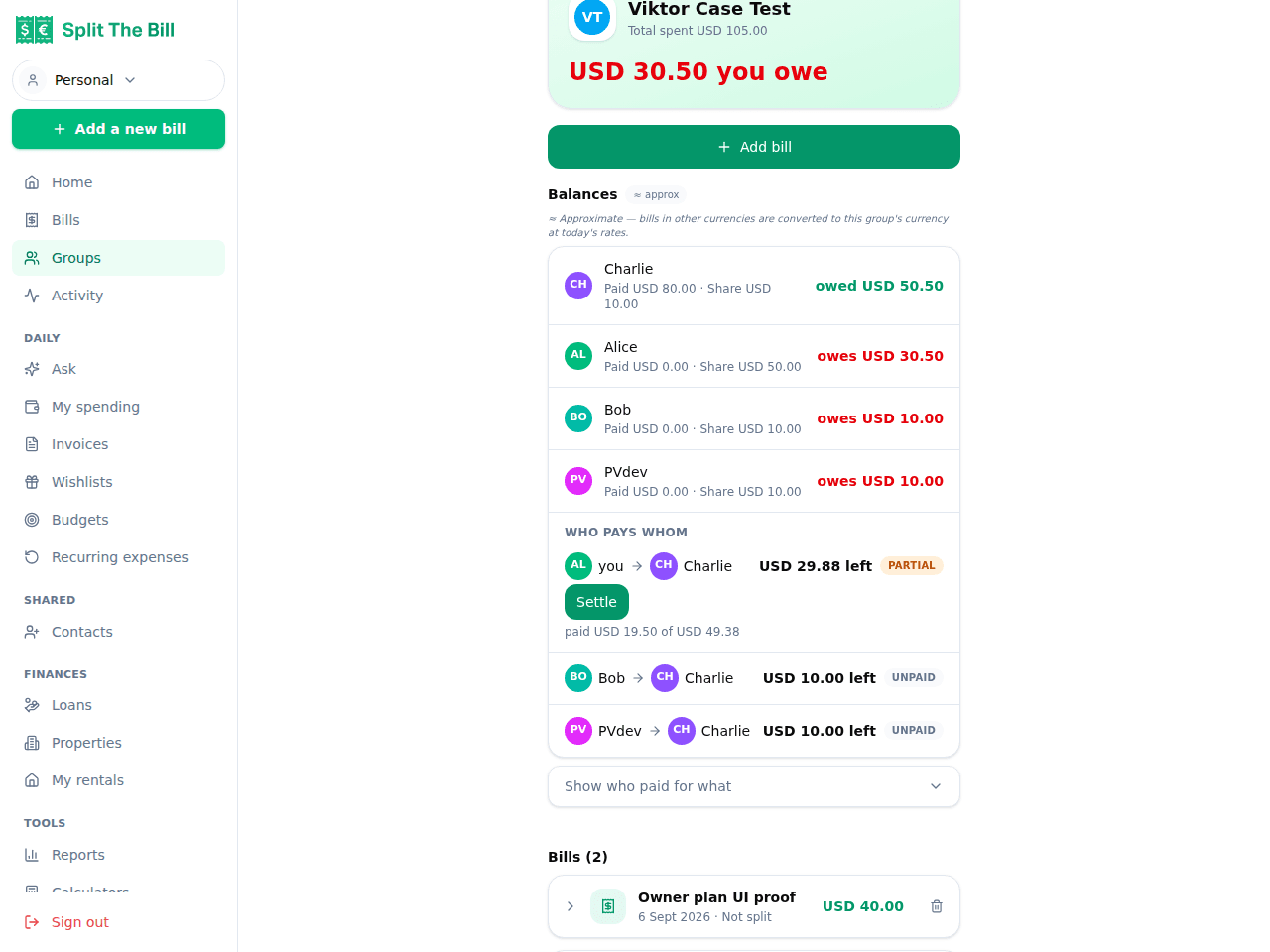
Per-peer balances show who still owes what after every bill.
Why this is faster than splitting on the spot
The mental math at the table is hard. You're tired, the lighting is dim, someone is doing it on a calculator app, someone else is double-checking. The total time for 6-person dinner: 5-15 minutes plus the social friction of "did I include the tip?" and "wait, you had the salad, right?".
Split The Bill compresses this to ~60 seconds, mostly while waiting for the card to process. Photo: 2 seconds. Upload + OCR: 5 seconds. Assigning items: 30 seconds for 6 people. Submit + send pay links: 5 seconds. The social friction also evaporates because everyone gets a clean breakdown — nobody can argue with a labelled receipt photo + per-person itemized total.
When item-level matters vs when to just split equally
Item-level is worth the ~30 seconds when the order ranges are wide ($20 lightest to $80 heaviest). When everyone ordered roughly the same amount, a flat equal split is faster and just as fair.
A good heuristic: if the difference between the cheapest and most expensive order is less than 30% of the average, just split equally. If it's more than 30%, item-level is worth it. The app makes either trivial — you can switch between the two without losing the data.
Tips for better OCR results
Photo straight on, not at an angle. Skewed receipts confuse the model.
Make sure the totals are visible. Some restaurants print the items on one half of a long roll and the totals on the other; if you cropped to fit your viewfinder, it might be missing the bottom. The model often catches this and flags missing totals — but you can save a step by capturing the whole receipt.
Avoid heavy shadows. Receipts under candlelight look dramatic but the OCR struggles. Move the receipt to a normally-lit corner of the table.
For thermal-printed receipts (most modern POS systems): these fade fast in heat / sunlight. Snap immediately at the table; don't leave the receipt in the car for 3 hours and then expect the OCR to work.
Frequently asked questions
Does the AI handle weird restaurant items / abbreviations?▾
Mostly. "BURG" → it understands as Burger; "ESPR" → Espresso. For unusual abbreviations or restaurant-specific shorthand, it captures the text verbatim — you can edit the line if it matters for splitting (it doesn't, since splits are by item line, not by deciphering the name).
What if the tax/tip is wrong?▾
Edit either field directly on the bill detail page after the OCR runs. The math recalculates instantly. We've specifically tested with European receipts where VAT structure differs from US sales tax + tip — the app handles both.
Can I split with people who don't have the app?▾
Yes — public share link. Send them the URL; they see the bill, their share, can tap "Pay" to send you the money via any of your registered payment methods. No account needed on their end.
How long does the OCR take?▾
Typically 3-7 seconds from upload to extracted-table. On slower connections (international roaming, hotel WiFi), allow 10-15 seconds. The actual model inference is fast; most of the time is upload.
What if the restaurant doesn't print itemized receipts?▾
For "summary only" receipts (just a total), use the manual entry flow: tap New Bill → manual → enter total. You can still split equally; you just can't do item-level. This happens often at small bars / cash-only places.
How does it handle service charges / mandatory tip in Europe?▾
These usually appear as a line item on the receipt; the OCR captures them as one of the "expense" rows alongside tax. The default redistribution (equal across participants) handles them correctly. You can switch to proportional if you want service to scale with order size.
Can I use it for delivery (Uber Eats / DoorDash)?▾
Yes — screenshot the order summary instead of a paper receipt. The OCR works on screenshots the same way. Delivery fees + service charges land as expense rows; redistribute as you prefer.
Free tier covers most recipes. Pro is 100 receipts every 30 days + private invite links.


