Recipe
Organize department budgets with sub-groups
A group of groups. Give each team its own space to split costs, then nest them under one parent that rolls the numbers up — no re-typing, no separate spreadsheets per department. Nesting groups is a Pro feature ($7/month or $70/year); a plain, unnested group is free.
Last reviewed: January 2026

Once you're splitting costs across more than one team — a design squad, an engineering squad, a shared "office" bucket — a single flat group gets noisy fast. Everyone sees everyone's bills, and you lose the "what did Design actually spend" view. Split The Bill's sub-groups (a group of groups) fix this: each team gets its own group, and you nest those under one parent. Each team splits its own costs in its own space; the parent rolls the balances up so you can see the whole org in one screen. This guide walks through setting up a three-team parent for a small company or a club with multiple committees.
Step-by-step
- 1
Create a group for each team first
Start bottom-up. Tap New group once per team and name each after the team, not the parent — e.g. "Design", "Engineering", "Office & Shared". Add each team's members by email; they get a one-click invite link.
Keep the membership tight: only put someone in the Engineering group if they actually share Engineering's costs. The whole point of sub-groups is that a designer never has to scroll past six engineering bills to find their own.
Creating the teams first (before the parent) means that when you build the parent, the sub-groups already exist and are ready to nest.
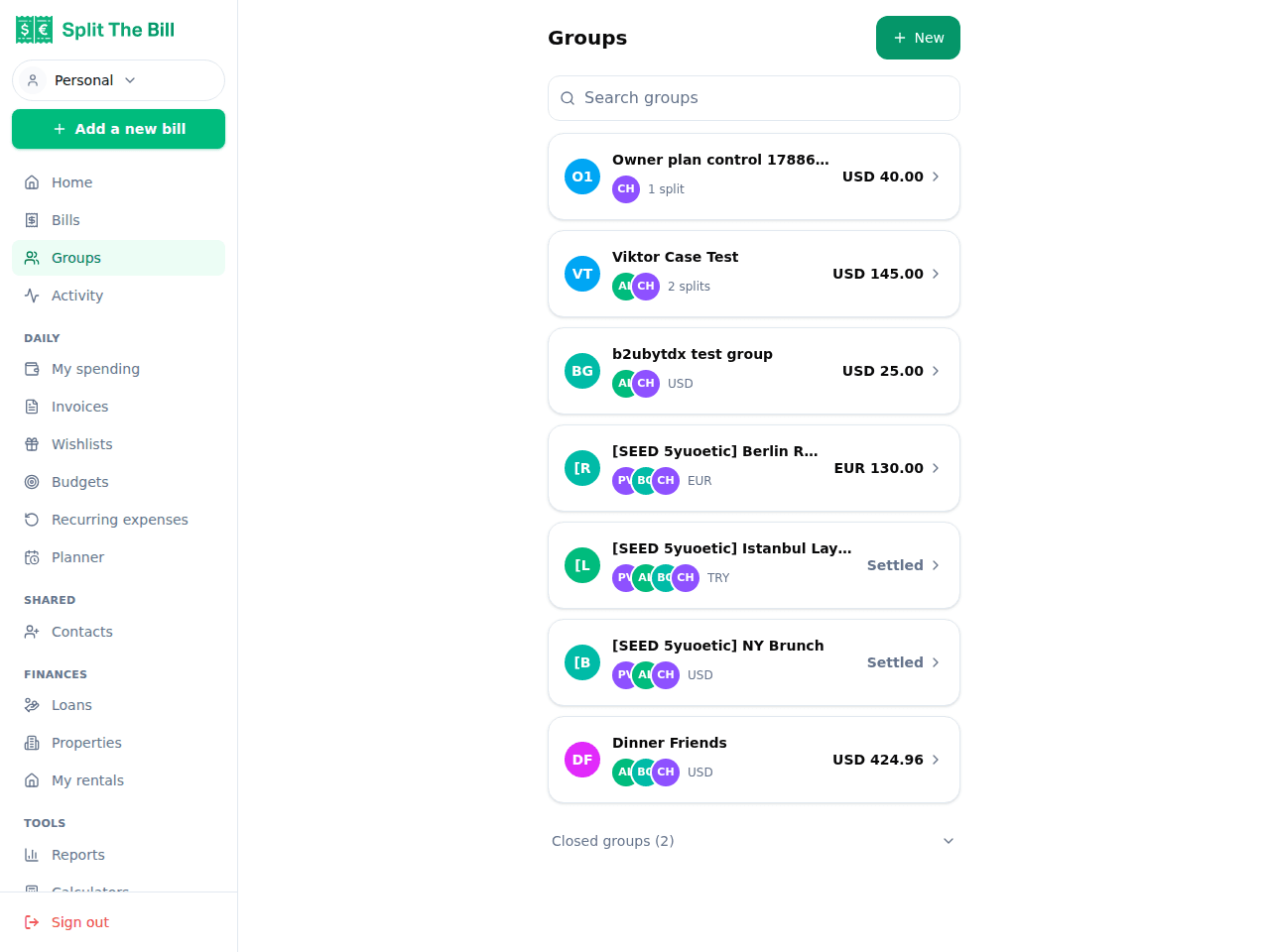
One group per team — Design, Engineering, Office — before you nest them. - 2
Create the parent group and nest the teams under it
Tap New group again and name it after the whole unit — "Acme Q3 Budget" or "Book Club Committees". This is the parent.
Nesting sub-groups under a parent is a Pro feature ($7/month or $70/year) — Free groups can't be nested. On the parent group's page, add the team groups you just made as sub-groups. Now the parent is a group of groups: Design, Engineering, and Office all live underneath it. Each keeps its own members and its own bills, but the parent can see across all of them.
You don't re-add every person to the parent — membership flows up from the sub-groups. Add someone to Engineering and they're part of the org rollup automatically.
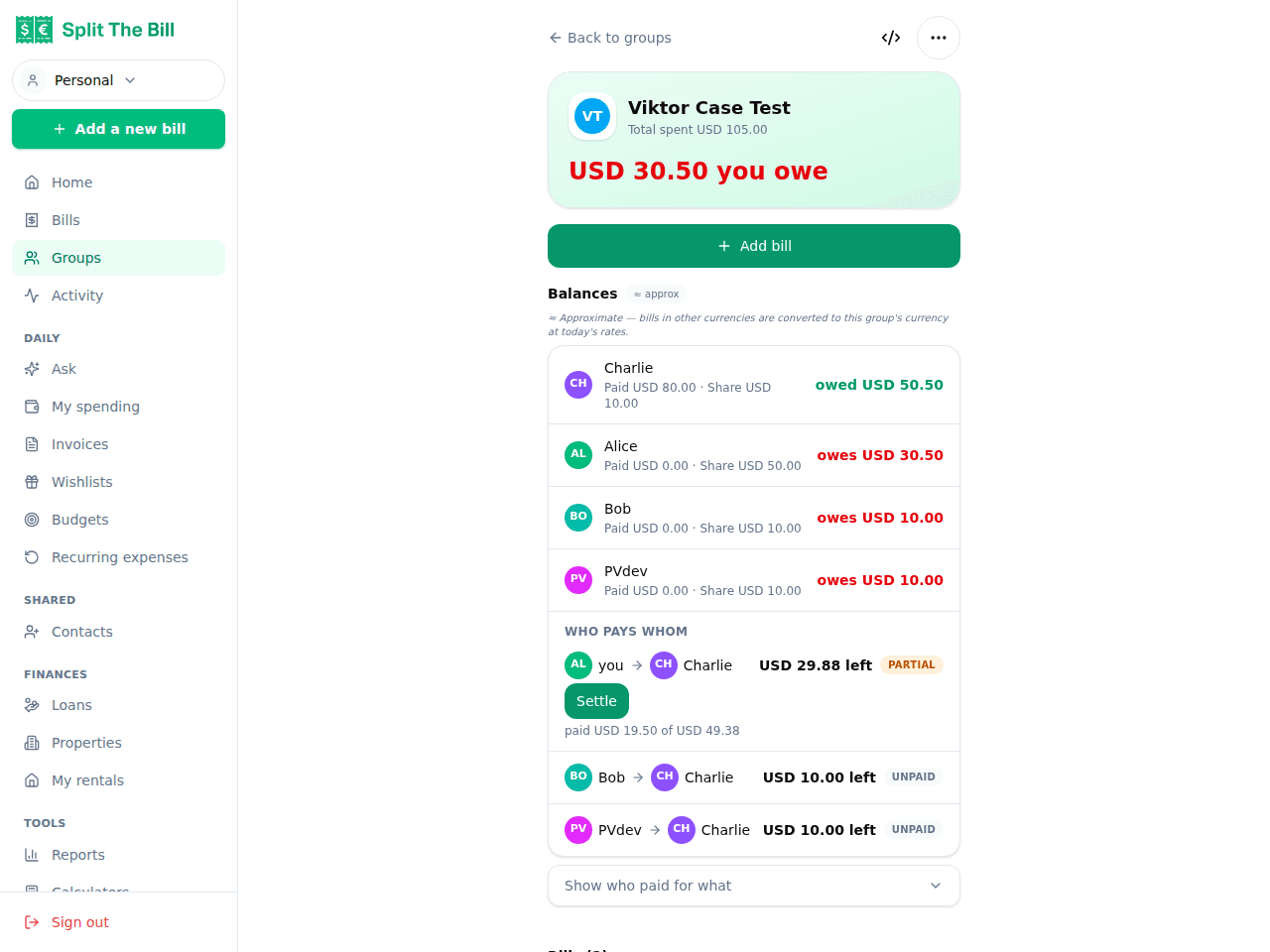
The parent group rolls up every sub-group's balances into one view. - 3
Let each team split its own costs in its own group
This is the part that stays boringly simple: each team just uses its own group like any normal group. Design adds its Figma seat and a print run; Engineering adds its cloud bill and a monitor; Office adds the coffee and the cleaner.
Open a bill inside a team group, tap Split this bill, and pick the method that fits — Equal for shared costs, By share when one person carries more, By items for a mixed receipt. The split only ever involves that team's members, so the picker isn't cluttered with the whole company.
Because the math runs through verified code (never the AI), each team's totals are exact — and they stay isolated to that team until you look at the parent.
- 4
Read the whole org from the parent group
Open the parent group to see the rolled-up view: every sub-group's balances summed into one "who owes whom" across the entire unit. Instead of opening three team groups and adding the numbers in your head, the parent does it for you.
This is where a department lead sees "Design is net +$120, Engineering is net −$340, Office is even" without needing to be a member of the day-to-day splitting inside each team. The parent is the dashboard; the sub-groups are the detail.
- 5
Add a shared "Office" bucket for cross-team costs
Some costs don't belong to one team — the coffee machine, the all-hands lunch, the shared Zoom license. Put these in a dedicated Office & Shared sub-group whose members are one representative per team (or everyone, if you split shared costs across the whole company).
Split those bills Equal across the shared group's members. They roll up into the parent alongside the team-specific costs, so the org view shows both "what each team spent on itself" and "what everyone chipped in on together" in the same place.
- 6
Export the rollup as CSV at the end of the period
At month- or quarter-end, go to `/bills` and click CSV detail to download every bill, line item, split, and settle-up across the groups you can see. Filter or pivot by group in your spreadsheet to get a per-department breakdown for the books.
This is the handoff to whoever does the actual accounting: the app keeps the live rollup for day-to-day visibility, and the CSV gives finance a clean, per-team record without anyone re-keying a single number.
Why sub-groups beat one giant flat group
You *can* put the whole company in one group and just tag bills by team. It works until it doesn't:
Noise. In a flat group, a designer scrolls past every engineering and office bill to find their own. Sub-groups keep each team's feed to that team's costs.
Wrong people in the split picker. In a flat group, the "who's in this split" list is everyone in the company. Pick the wrong person and you've billed the wrong team. In a sub-group the picker is just that team — fewer mistakes.
No per-team view. A flat group gives you one big balance blob. Answering "what did Design spend this quarter" means manually filtering. Sub-groups give each team its own balance for free, and the parent sums them.
Membership churn. When someone leaves Engineering, you remove them from the Engineering sub-group — not from a company-wide group where you have to remember which of their bills were engineering costs.
How the rollup math actually works
The parent group doesn't create its own bills. It reads the balances of every sub-group nested under it and sums them per person, per currency. If Alice is owed $50 in Design and owes $20 in Office, the parent shows her net position across both.
Settle-up still happens inside the team groups where the bills live — you pay off a Design bill in the Design group, using the same "Pay" button and settle-up links as any other group. The parent is a read-up view of those balances, not a separate ledger you have to reconcile.
Because each team can run in its own currency and the app tracks balances per currency, a EUR-based Design team and a USD-based Engineering team roll up without the parent silently mixing the two into a fake single number.
Common pitfalls and how to avoid them
Duplicating people into both a team group and the parent by hand. You don't need to — membership flows up from the sub-groups. Adding someone directly to the parent on top of their team creates confusion about which balance is "real". Add people to teams; let the parent inherit.
Putting shared costs in a specific team's group. The all-hands lunch billed to Engineering distorts Engineering's number. Use a dedicated Office & Shared sub-group for anything cross-team so each team's balance stays honest.
Nesting too deep. Sub-groups are a group of groups — one parent over its teams. Resist the urge to build parents of parents of parents; two levels (org → teams) is what stays readable. If you find yourself wanting a third level, it's usually a sign a team should be its own top-level parent instead.
Forgetting the CSV is scoped to what you can see. The export covers the groups you're a member of or can read. If finance needs the full org export, run it from an account that sits on the parent, not from one team lead's login.
When to use a different approach
For a single team with no sub-divisions, sub-groups are overhead — just use one plain group. The nesting only pays off once you have two or more teams whose costs you want to keep separate but still see together.
For a real company with payroll, invoicing clients, and formal accounting, Split The Bill is the shared-cost layer, not the accounting system. Use sub-groups to track and settle who-owes-whom between people, then export the CSV into your actual books.
And if the teams never share anything and never need a combined view, skip the parent entirely — separate top-level groups with no nesting is simpler and does the job.
Frequently asked questions
What is a sub-group?▾
A sub-group is a group nested inside another group — a group of groups. Each sub-group keeps its own members and its own bills; the parent group sits on top and rolls up the balances across all the sub-groups nested under it.
Is nesting sub-groups free?▾
No — nesting groups under a parent is a Pro feature, $7/month or $70/year. Free accounts can create as many plain (unnested) groups as their group cap allows, but can't nest one group under another.
Do I have to add everyone to the parent group manually?▾
No. Membership flows up from the sub-groups. Add a person to the Engineering team group and they're part of the parent's rollup automatically — you never re-add the same people at the parent level.
Where do I actually pay off a bill — in the team group or the parent?▾
In the team group, where the bill lives. Settle-up (the "Pay" button, the payment-app deep links, SEPA QR) works inside each sub-group exactly like a normal group. The parent is a read-up view of those balances, not a separate ledger.
Can different teams use different currencies?▾
Yes. Each group can run in its own currency, and balances are tracked per currency. A EUR-based team and a USD-based team both nest under one parent without the app collapsing them into a single misleading number.
How do I handle costs that belong to everyone, not one team?▾
Create a dedicated shared sub-group (e.g. "Office & Shared") for cross-team costs like coffee, all-hands lunches, or a shared license. Split those bills equally across its members; they roll up into the parent alongside each team's own costs.
How deep can I nest sub-groups?▾
Practically, keep it to two levels: one parent over its teams. That's what stays readable. If you're reaching for parents-of-parents, a team probably wants to be its own top-level parent instead.
Can I export a per-department breakdown for accounting?▾
Yes. From /bills, click CSV detail to download every bill, line item, split, and settle-up across the groups you can see, then pivot by group in your spreadsheet. Run it from an account that sits on the parent to capture the full org.
Free tier covers most recipes. Pro is 100 receipts every 30 days + private invite links.