Recipe
Run team and office expenses — without becoming the office accountant
Group your teams as sub-groups under one company umbrella, keep a shared kitty for the coffee-and-supplies float, and export a clean CSV report at month-end. Nesting sub-groups is a Pro feature ($7/month or $70/year); the kitty and CSV export are free.
Last reviewed: January 2026
Shared office spend is death by a thousand small bills: coffee runs, Friday lunches, the printer toner someone bought on their own card, the birthday cake fund. No single person should carry the mental load of who paid for what, and no one wants to run it in a spreadsheet that drifts out of sync by Wednesday. Split The Bill handles this with three features working together — sub-groups to mirror your org chart, a shared kitty to hold the office float, and CSV reports that reconcile to the cent for reimbursement. This guide sets up a small company (12 people, three teams) end to end.
Step-by-step
- 1
Create a company group, then a sub-group per team
Tap New group → name it after the company or office ("Acme HQ"). Then, inside that group, add each team as a sub-group — "Engineering", "Design", "Ops". Nesting sub-groups under a parent is a Pro feature ($7/month or $70/year); a plain, unnested group is free. A sub-group is a group nested under a parent, so a bill split within Engineering rolls up into the Acme HQ view without mixing into Design's numbers.
This mirrors how the money actually flows: a team lunch belongs to that team, but the office-wide coffee supply belongs to everyone. Sub-groups let both live under one roof without one team subsidising another by accident.
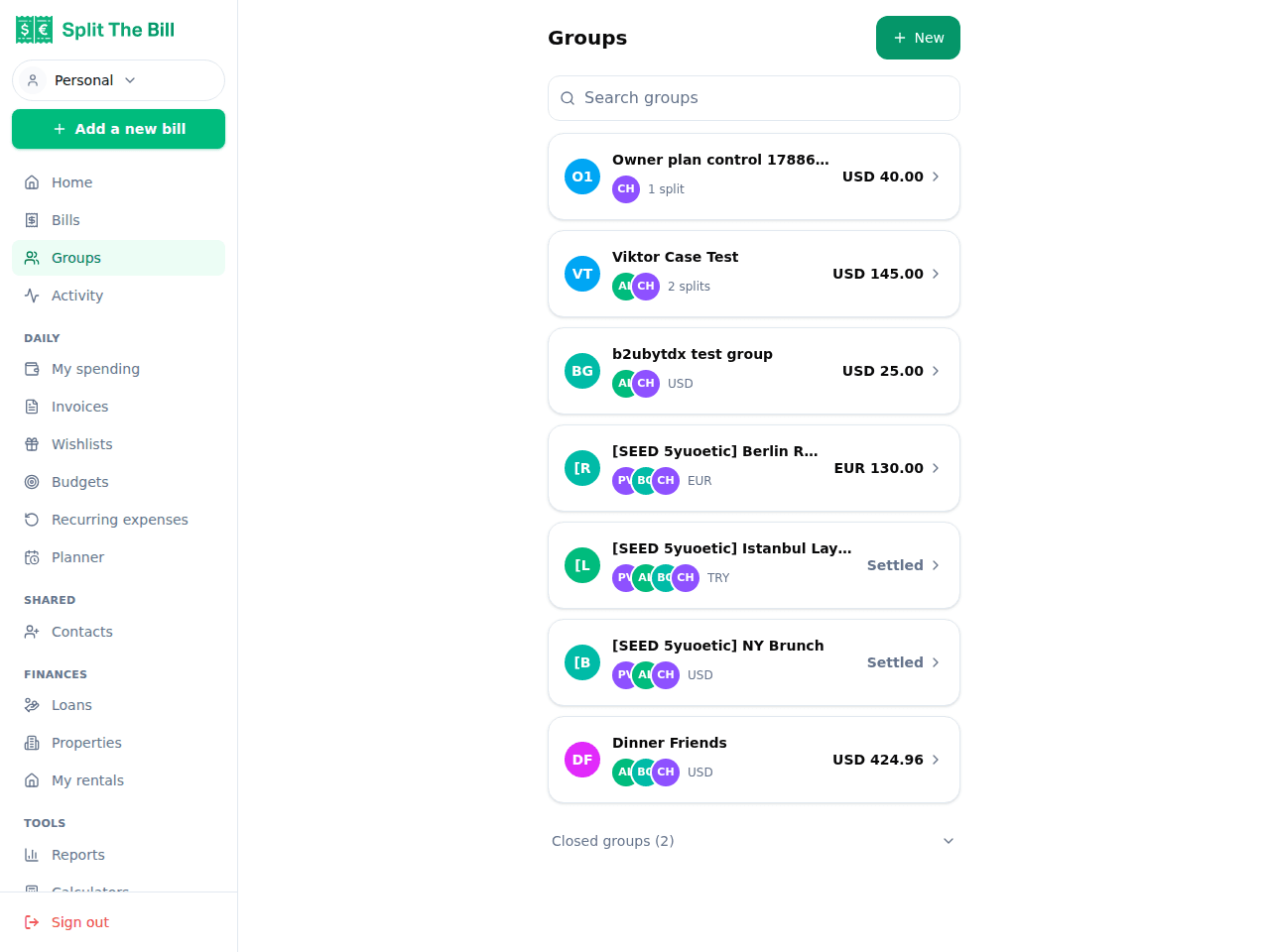
One company group; each team is a sub-group nested underneath. 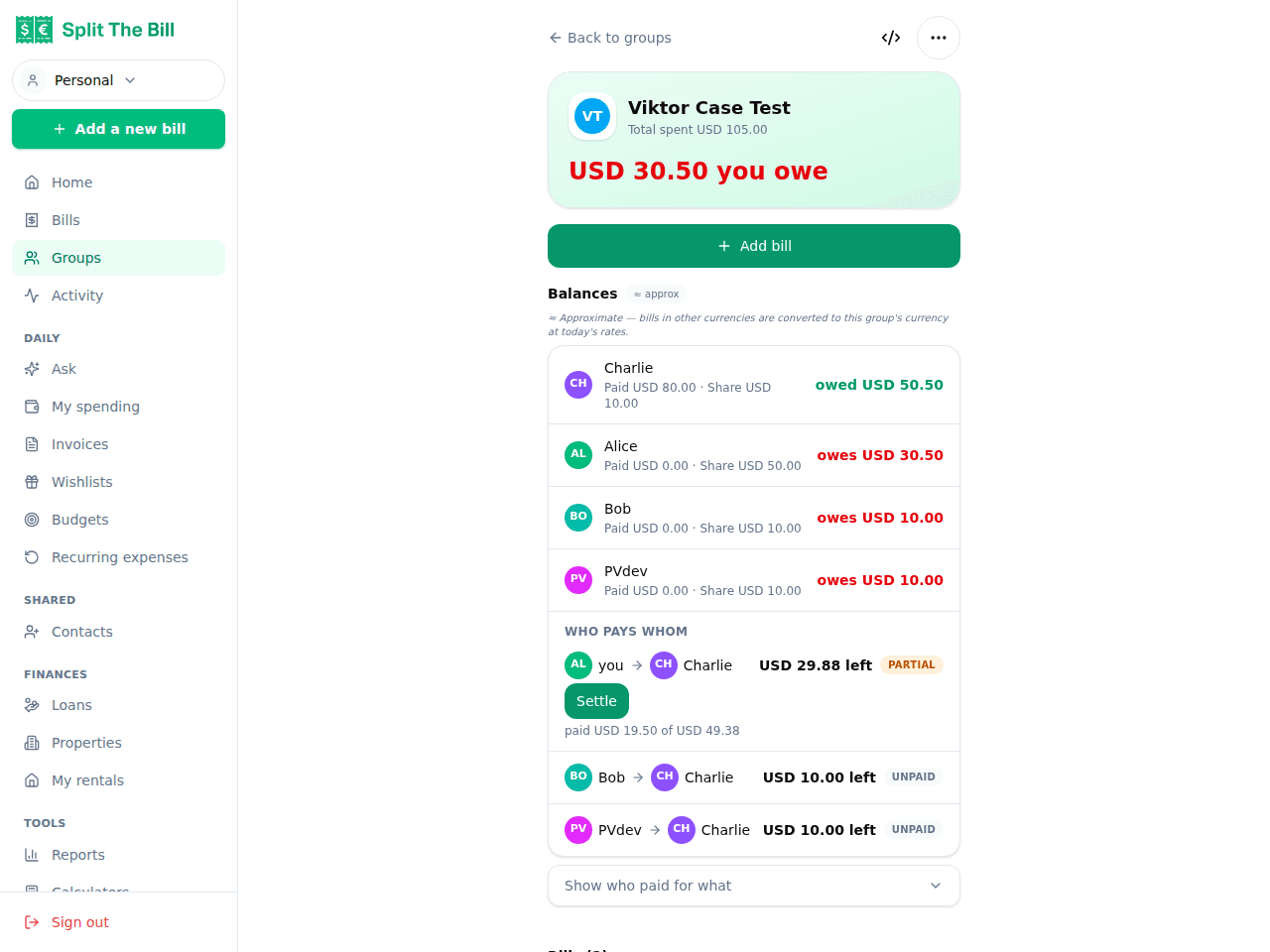
Each team's bills roll up into the company view without cross-contaminating balances. - 2
Invite the team by email
Add each teammate to their sub-group by email — they get a one-click invite link, sign up if they don't have an account, and land straight in the right team.
For contractors or a visiting agency who won't install anything, invite them anyway: they can view the bills they're on and their share via a public share link, no account required. You still get an accurate split; they get visibility into exactly what they owe or are owed.
- 3
Fund a shared kitty for the office float
Open the company group and set up its kitty — a shared pooled fund that sits at the group level. Each person contributes a fixed amount (say $20 a month), and the pot covers the small recurring stuff: coffee beans, milk, snacks, the occasional round of pastries.
When someone buys supplies, they pay from the kitty instead of fronting it personally. The kitty balance goes down, everyone's contribution already covered it, and nobody has to chase a $14 reimbursement. The running kitty balance is always visible, so you can see when it's time to top up.
- 4
Log ad-hoc bills against the right team
For anything the kitty doesn't cover — a team offsite lunch, a monitor someone expensed, client-dinner drinks — tap New Bill inside the relevant sub-group. Snap the receipt (the AI reads the line items) or enter the total manually for a quick cab or coffee.
Split it the way it actually happened: equally across the team for a shared lunch, or by items when three people ordered the tasting menu and two had salads. Tag each bill with a category (meals, supplies, travel, software) so the report at month-end sorts cleanly.
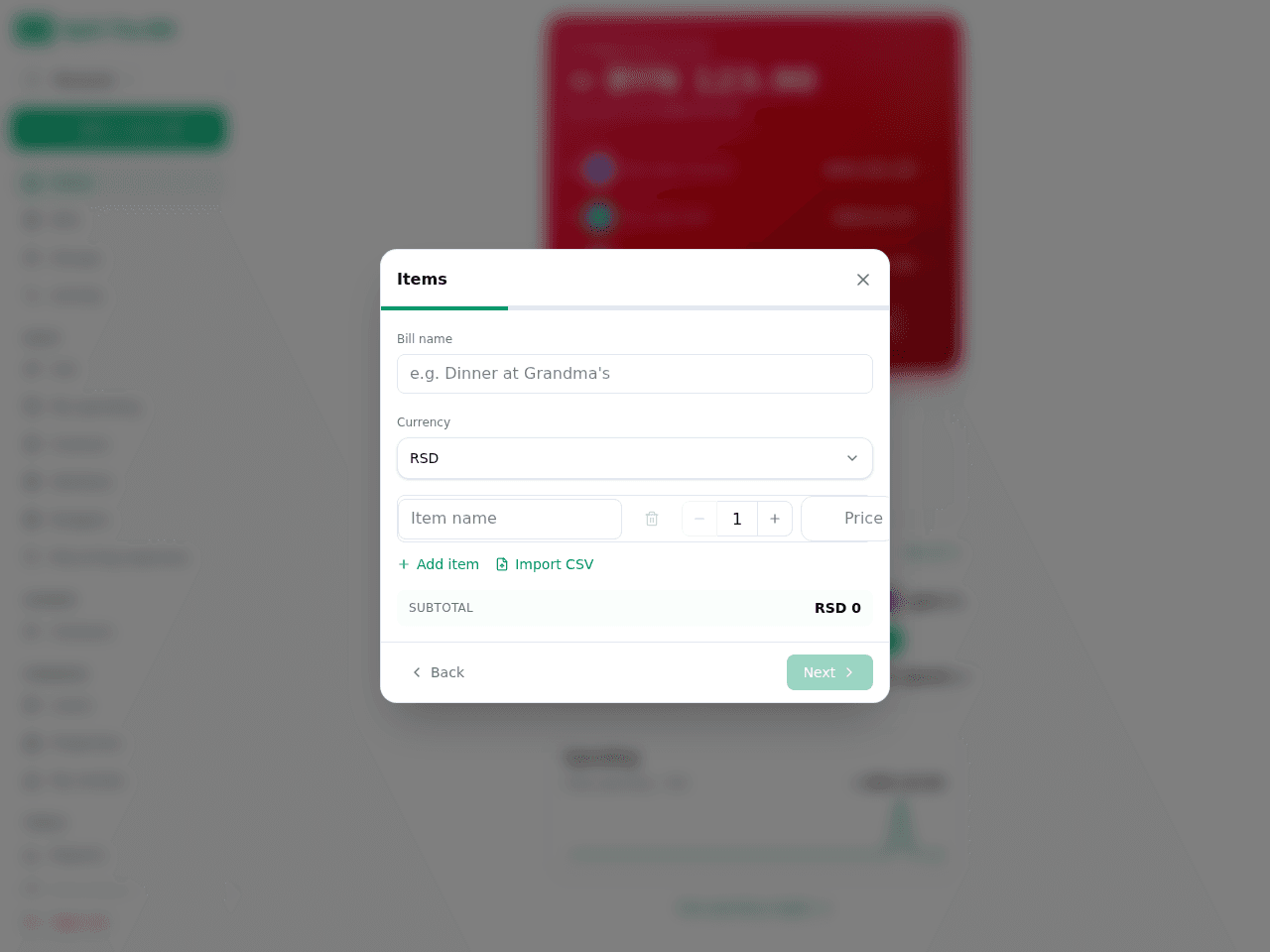
Log the bill against the team that owns the spend; tag a category for the report. - 5
Settle up within each team
Whoever fronted a bill is owed by the rest of the team. On each bill detail, every share row shows a Pay button that opens the payer's chosen method — Venmo, PayPal, Revolut, or a SEPA/IBAN QR for European bank transfers — with the amount prefilled.
For a company that reimburses through payroll or a corporate card, you can instead just mark shares settled as they clear. Either way, the group page rolls up who's square and who still owes across every team.
- 6
Export a CSV report at month-end
On `/bills`, click CSV detail to download every bill, line item, share, and settle-up for the period — filterable by group, so you can pull just Engineering or the whole company. The numbers reconcile to the cent because the math runs through verified code, not a formula anyone can nudge.
Hand the CSV to whoever runs reimbursements: it opens cleanly in Excel, Sheets, or Numbers, sorted by your categories. No more end-of-month archaeology reconstructing who paid for the offsite.
Why sub-groups beat one big group
The instinct is to throw the whole company into a single group and split everything from there. That breaks down fast:
Cross-team noise. A single flat group means Design sees every Engineering lunch and vice versa. Balances mix, and "who owes whom" becomes a wall of unrelated rows. Sub-groups keep each team's ledger clean while still rolling up to a company total.
Fair boundaries. A team offsite should be split within that team, not diluted across people who never went. Sub-groups make the boundary explicit — the bill lives in Engineering, so only Engineering pays.
Reporting clarity. When it's time to reimburse or report to finance, "export the Ops sub-group" is a two-click filter. In one flat group you'd be manually picking rows out of a mixed pile.
The company group still gives you the top-level roll-up when you want it — total office spend, who across the whole org is carrying a balance — without losing the per-team detail underneath.
Getting the kitty right
The kitty is for predictable, low-value, high-frequency spend — the stuff where individually reimbursing each purchase costs more in hassle than the purchase itself. Coffee, milk, snacks, cleaning supplies, the birthday-cake fund.
Size it to about a month of float. If the office gets through roughly $180 of supplies a month across 12 people, a $15–20 monthly contribution each keeps the pot healthy without hoarding cash.
Buy from the kitty, don't front and reclaim. The whole point is that nobody personally carries the cost. When you pay a supply run from the kitty, the pooled fund absorbs it — no individual reimbursement to chase.
Keep big or team-specific spend out of it. A $600 team offsite is not kitty spend; that's a normal bill split within the team. Mixing large one-offs into the kitty makes the balance jump around and hides who actually owes what.
Top up on a schedule, not in a panic. Watch the running balance; refill at the start of each month rather than when it hits zero and the coffee runs out.
Common pitfalls and how to avoid them
Logging a bill against the company group when it belongs to a team. It then splits across everyone, including people who weren't there. Fix: always add the bill inside the correct sub-group so the boundary is right from the start.
Treating the kitty as a slush fund for everything. If every expense goes through the kitty, the pot drains unpredictably and you lose the per-bill audit trail. Keep it to small recurring supplies; everything else is a normal split.
Forgetting to tag categories. The month-end CSV is only as useful as your tags. An untagged pile of bills still exports, but finance has to re-categorise by hand. Tag as you go — it takes a second per bill.
Never reconciling the kitty. Contributions in, purchases out — if you never look, the balance can quietly go negative when someone overspends. Glance at the kitty balance when you export the monthly report.
When to use a different approach
For a company large enough to have a real finance team and a corporate card program, a proper expense platform (Expensify, Ramp, Pleo) with policy controls and direct accounting integrations is the right tool. Split The Bill is for the messy in-between — the small team, the satellite office, the department float — where a full expense suite is overkill but a spreadsheet is chaos.
For purely personal reimbursements between two colleagues (you covered lunch, they'll get you back), you don't need sub-groups or a kitty at all — a single shared bill with a settle-up link does it.
And if every expense is already on one company card with no personal fronting, you may not need splitting at all — just the CSV export as a categorised record of what the team spent.
Frequently asked questions
What is a sub-group and how is it different from a normal group?▾
A sub-group is a group nested under a parent group. You create the company as the top-level group, then add each team as a sub-group inside it. Bills split within a sub-group stay in that team's ledger but roll up into the company-level view — so you get both the per-team detail and the office-wide total without mixing balances between teams.
Is nesting sub-groups free?▾
No — nesting groups under a parent is a Pro feature, $7/month or $70/year. Free accounts can create plain (unnested) groups, run a kitty, and export CSVs, but can't nest one group under another.
How does the shared kitty work for office supplies?▾
The kitty is a pooled fund held at the group level. Each member contributes a set amount, and shared purchases — coffee, snacks, supplies — are paid from the pot rather than fronted by an individual. The running balance is always visible, so you can see when to top up. It removes the hassle of chasing small reimbursements one by one.
Can I export a report for reimbursement or accounting?▾
Yes. From the bills screen, CSV detail downloads every bill, line item, share, and settle-up for the period, filterable by group so you can pull one team or the whole company. It opens in Excel, Sheets, or Numbers, sorted by the categories you tagged, and reconciles to the cent because the math runs through verified code.
What if a contractor or agency won't install the app?▾
Invite them anyway. They can view the bills they're on and their exact share through a public share link with no account. They can settle via the Pay buttons — Venmo, PayPal, Revolut, or a SEPA/IBAN QR — without ever signing up. You still get an accurate split.
Should a team offsite go through the kitty?▾
No — keep the kitty for small, recurring, low-value spend like coffee and snacks. A larger one-off like a team offsite or dinner is better logged as a normal bill split within that team's sub-group. Mixing big one-offs into the kitty makes the balance jump around and hides who actually owes what.
Can different teams use different currencies?▾
Yes — multi-currency is supported and included in the free tier. Each bill stores its native currency, and cross-currency settlements reconcile at the prevailing rate when someone pays in a different currency. A satellite team billing in EUR under a USD-based company group works fine; the report reflects each bill's native amount.
Who can see and add bills in a team sub-group?▾
Every member of a sub-group can add their own bills, edit splits, and see the running balance for that team — so the effort and visibility are distributed rather than landing on one person. The company-level roll-up shows the top-level total across all teams for whoever is managing the overall office spend.
Free tier covers most recipes. Pro is 100 receipts every 30 days + private invite links.